




Ever spent hours crafting the perfect blog post only to watch it sink into the abyss of forgotten content? You’re not alone. Most bloggers fail to maximize the reach and lifespan of their content, leaving traffic—and potential revenue—on the table. But here’s a secret I’ve learned: Pinterest is a goldmine for breathing new life into your old posts.
Pinterest isn’t just for recipes and DIY crafts anymore (though those niches still rule). In 2026, it’s one of the most powerful search engines out there, especially for visual learners. And if you know how to repurpose your blog content strategically, you can turn it into viral pins that keep driving clicks for months—even years.
In this guide, you’ll discover:
- Why Pinterest is still an untapped traffic source for many blogs
- The 7 exact steps to transform your blog posts into pins people can’t resist clicking
- Common mistakes that sabotage pin performance (and how to avoid them)
If you’ve ever felt like your content deserves more eyeballs but didn’t know how to get them, stick with me. Let’s turn that forgotten blog post into a traffic-generating machine.
Why You Can’t Afford to Ignore Pinterest in 2026
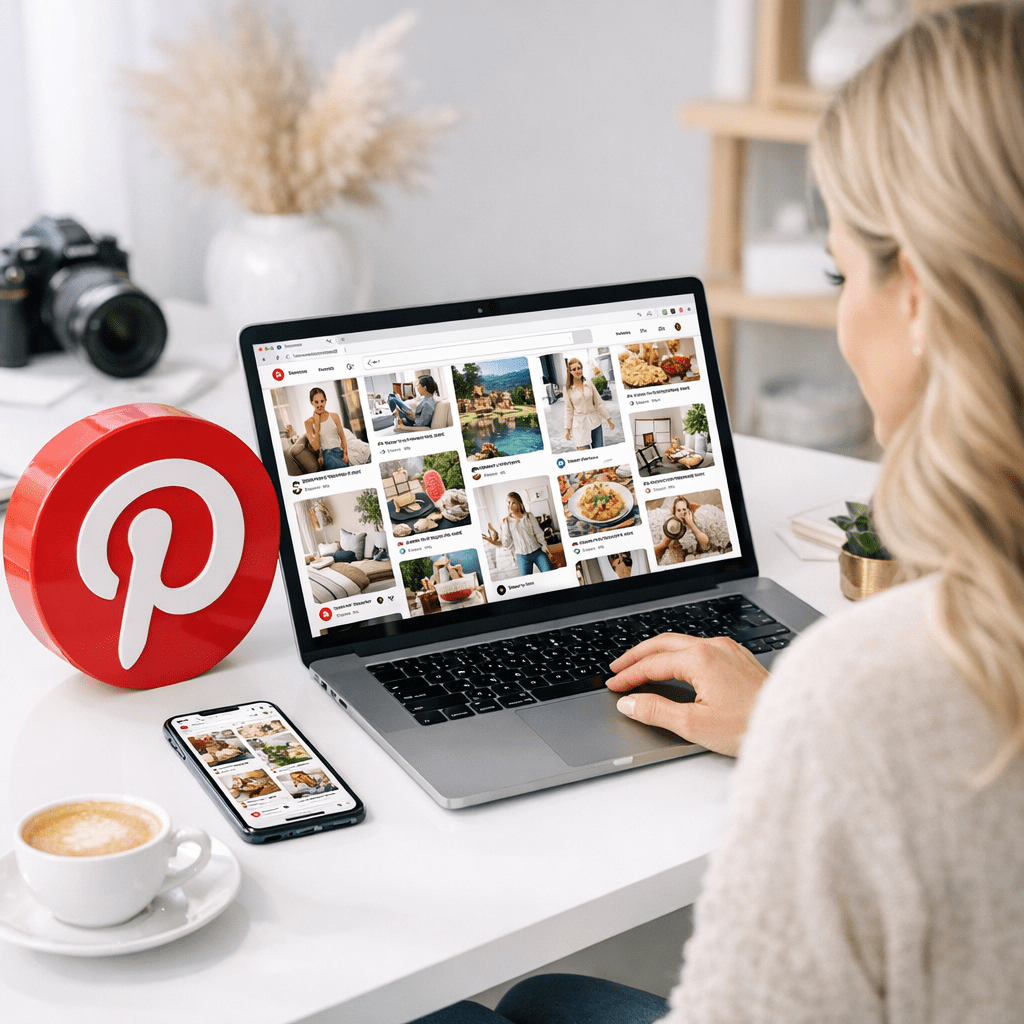
You might be thinking: “Pinterest? Isn’t that platform past its prime?” Not even close. In fact, Pinterest reported over 478 million active users in Q1 2026, with significant growth in lifestyle, finance, and business niches—not just crafts and food blogs. What sets Pinterest apart from other platforms is its longevity. While Instagram Stories disappear in 24 hours and TikTok trends fade fast, a well-designed pin can bring traffic years after posting.
Here’s what ignoring Pinterest could cost you:
- Lost Traffic: Blogs using Pinterest see up to 3x more referral traffic compared to those relying solely on Google SEO or social platforms like Facebook.
- Missed Leads/Sales: Each click on a pin is a potential subscriber or customer — why leave money on the table?
- Wasted Content: Without repurposing your blog posts into pins, you’re letting valuable assets collect digital dust.
The good news? Turning your existing blogs into viral pins doesn’t require graphic design skills or endless hours of effort. It does require strategy—and I’m about to break it down step by step.
Quick Navigation
1. Step 1: Identify Your Most Pinnable Blog Posts
Also worth reading: Comparativa
2. Step 2: Create Eye-Catching Pin Graphics
3. Step 3: Optimize Pin Descriptions Like a Pro
4. Step 4: Leverage Keywords Without Overstuffing
5. Step 5: Use Tailwind or Manual Scheduling Smartly
6. Step 6: Analyze Performance Metrics Weekly
7. Step 7: Refresh Old Pins with New Designs
Step 1: Identify Your Most Pinnable Blog Posts
Not every blog post belongs on Pinterest—let’s be real about that upfront. Here’s what works best on this platform in 2026:
1. How-to Guides: People come here searching for solutions—show them how your expertise solves their problem.
2. Listicles: Titles like “10 Ways To Save Money” or “7 Easy Dinner Recipes” scream clickable.
3. Evergreen Topics: Seasonal posts are fine but aim for topics that’ll stay relevant year-round.
How To Find Them:
Check your Google Analytics or Search Console data for blog posts already driving organic search traffic—they’re likely good candidates because they align with user intent people also search for on Pinterest.
Related guide: 10 Herramientas Clave para Crear Contenido
Key takeaway: Start with high-performing evergreen articles; don’t waste time repinning short-lived news updates or overly niche topics no one searches for.
Step 2: Create Eye-Catching Pin Graphics
Pinterest is all about visuals—your pin design determines whether someone scrolls past or clicks through faster than you’d swipe left on Tinder’s worst match.
Graphic Must-Haves
Here are non-negotiables when designing pins in Canva (or whatever tool you prefer):
✅ Vertical format (2:3 ratio — e.g., 1000×1500 pixels). This size dominates mobile screens where most users browse!
✅ Bold fonts for readability — skip cursive scripts unless legible at first glance.
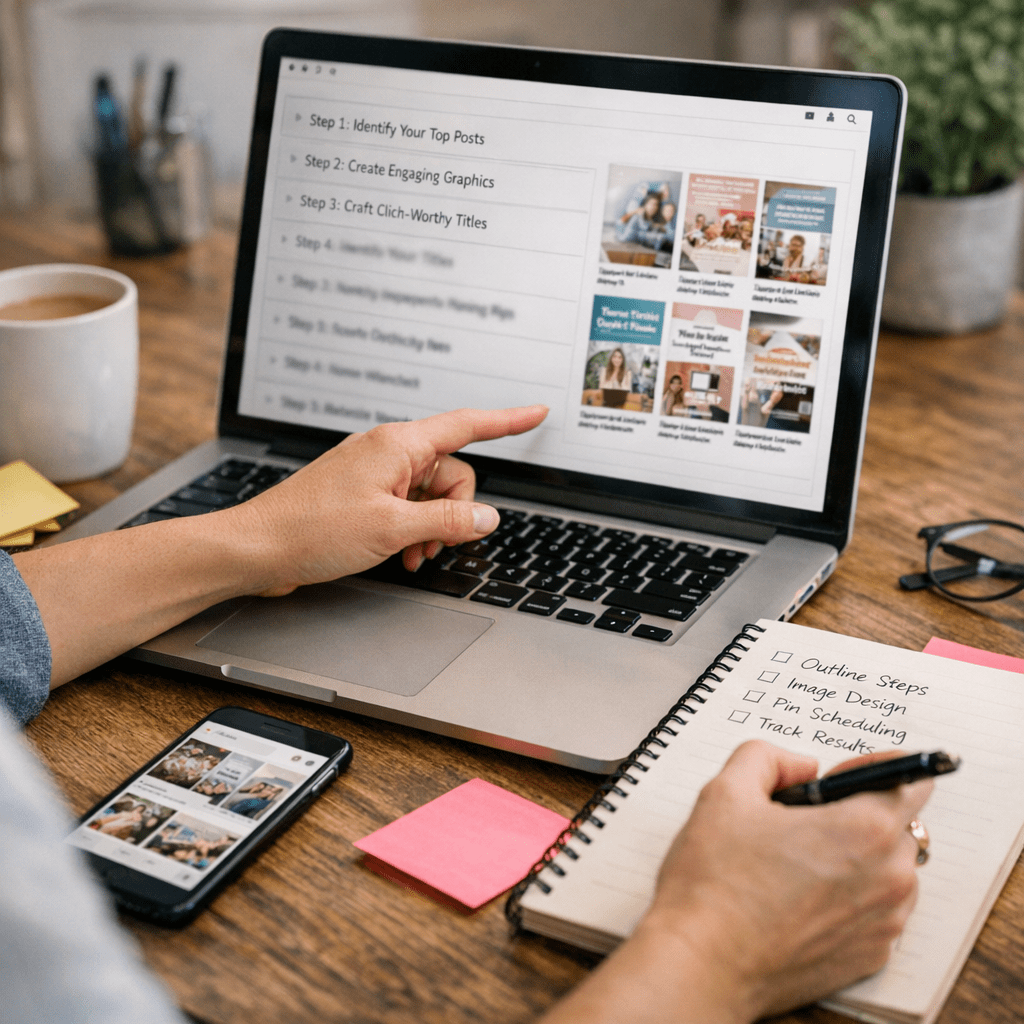
✅ A clear call-to-action overlay like “Read Now,” “Free Guide” or “Get Started.”
If you’re not sure where start visually? Templates exist inside tools such as Canva/Crello & even Adobe Express etc.. plug-in headline text logo colors tweak style branding


3 Comments
[…] Pro tip: Share these visuals on Pinterest—it’s still massively underutilized by bloggers in most niches (learn more here). […]
[…] This guide breaks down exactly how Pinterest pins can bring unexpected traffic and backlinks when optimized correctly! […]
[…] article about repurposing blog posts into viral Pinterest pins into an infographic back in January learn more. It tripled our shares compared to text-only […]