

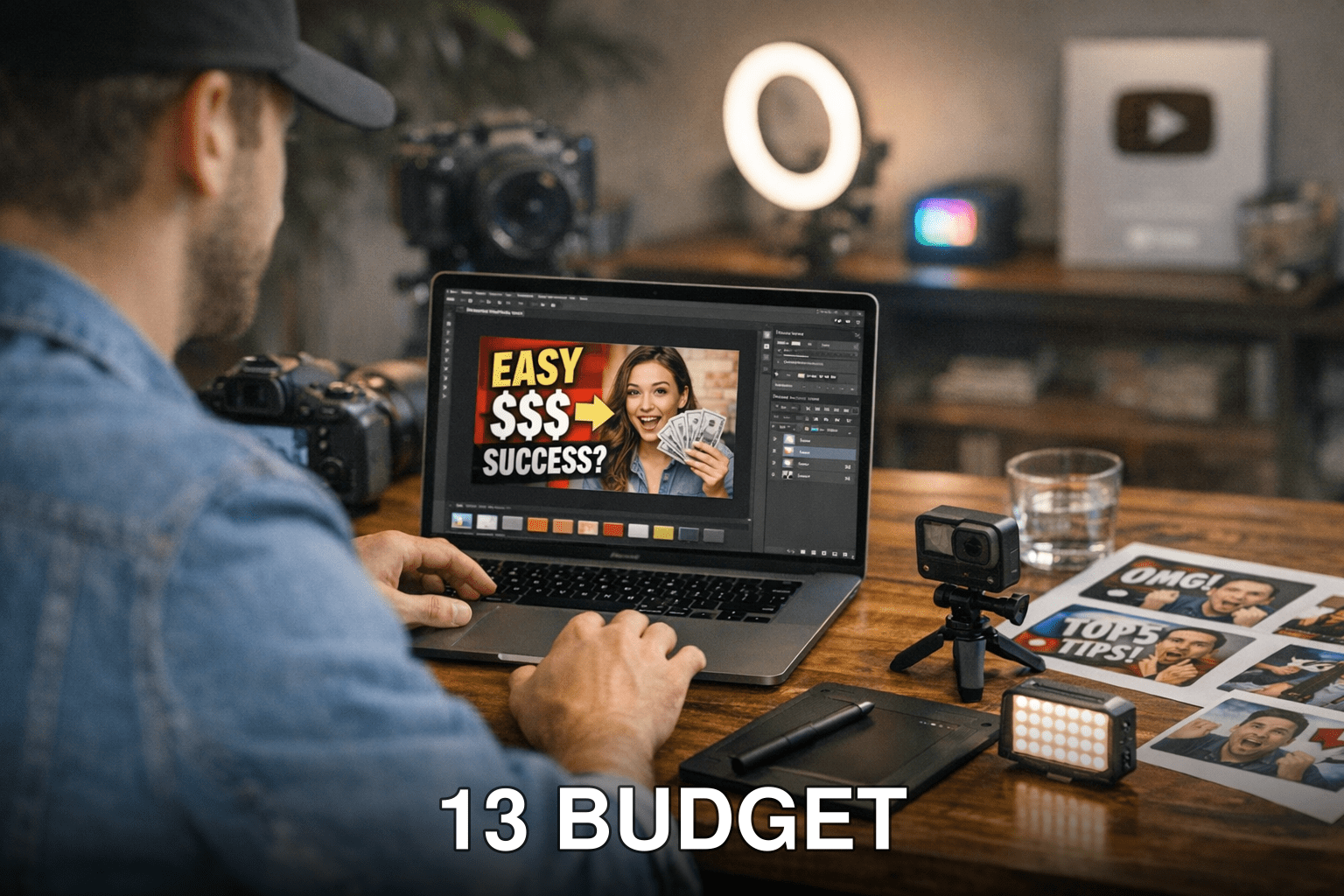
You’ve spent hours scripting, filming, and editing your YouTube video. It’s a masterpiece. But here’s the kicker: without a scroll-stopping thumbnail, no one’s going to click on it. You could have the best content on the platform, but if your thumbnail doesn’t scream “WATCH ME!”, you’re sunk.
And that’s the dilemma right now in 2026. The competition for attention is fiercer than ever. With over 4 million videos uploaded daily, even a small tweak to your thumbnail can mean the difference between viral success and total obscurity.
So how do you create thumbnails that grab eyeballs without spending a fortune? That’s where these 13 budget-friendly tools come in. They’ll help you design click-worthy visuals—whether you’re running a solo channel or managing content at scale.
In this guide, you’ll discover:
- The most affordable tools pros use to craft killer thumbnails.
- Which apps provide serious value (and which are overrated).
- Actionable tips to make your thumbnails stand out in 2026’s crowded YouTube scene.
Let’s jump right in.
1. Canva: The All-Around Workhorse
Price: Free plan available; Pro starts at $12.99/month
Also worth reading: Comparativa
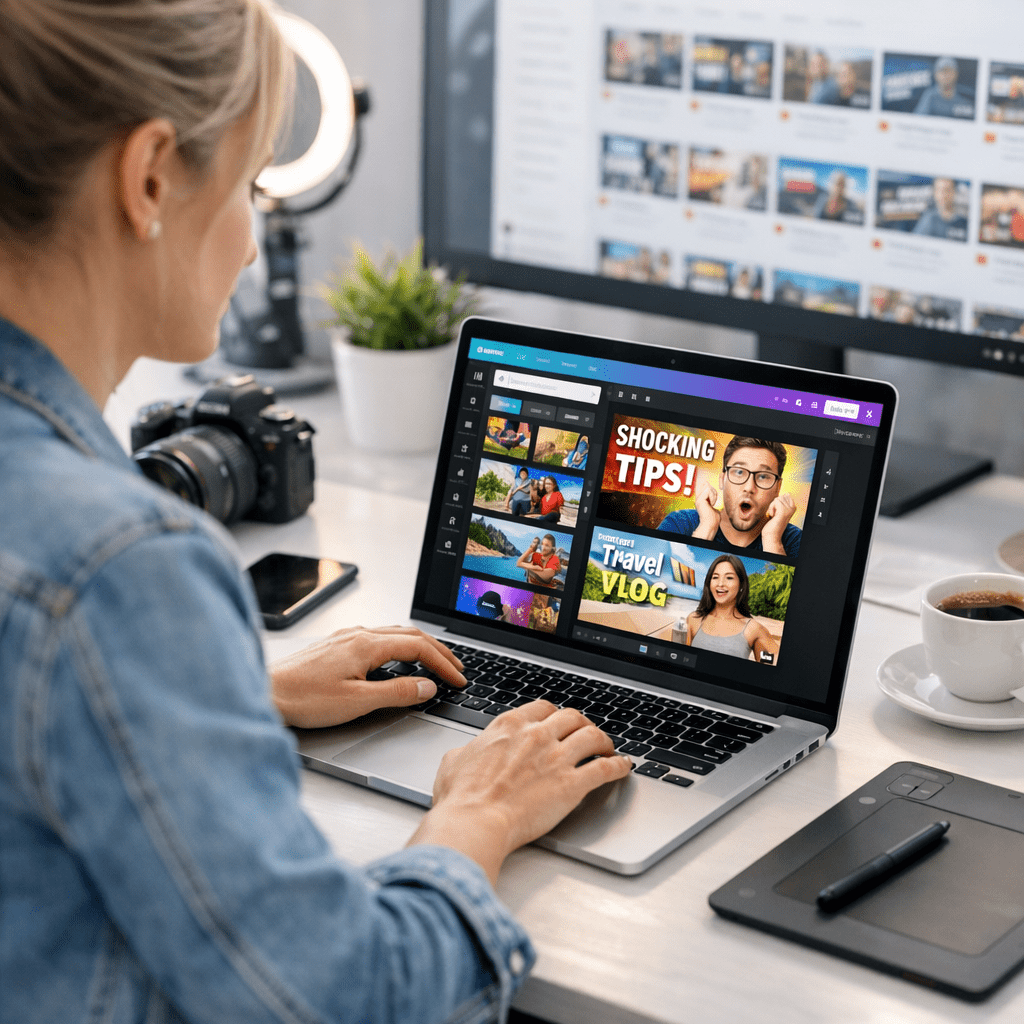
Canva has been around for years, but its 2026 upgrades make it an unbeatable choice for YouTubers on a budget. Its drag-and-drop interface is perfect for quick designs, and with thousands of pre-made templates tailored for YouTube thumbnails, half your work is done before you even start.
What I love about Canva is how intuitive it feels—no graphic design degree needed here. Whether you’re layering text over images or tweaking colors for maximum contrast, it just works.
What Sets It Apart:
- AI Background Remover (Pro feature): Erase complex image backgrounds instantly.
- Magic Resize Tool: Create multiple versions of your design for different platforms with one click (e.g., Instagram posts or Pinterest pins).
- Font Pairing Suggestions: No more guessing which fonts go well together—it does it for you.
But here’s my gripe: while Canva is great for beginners and intermediate users, its simplicity becomes limiting if you’re after advanced customization or unique effects.
Key takeaway: Canva is an ideal choice if speed and simplicity are what you need—but not if you’re chasing ultra-polished custom designs.
2. Fotor: Quick Edits Without The Hassle
Price: Free plan; Pro starts at $8.99/month
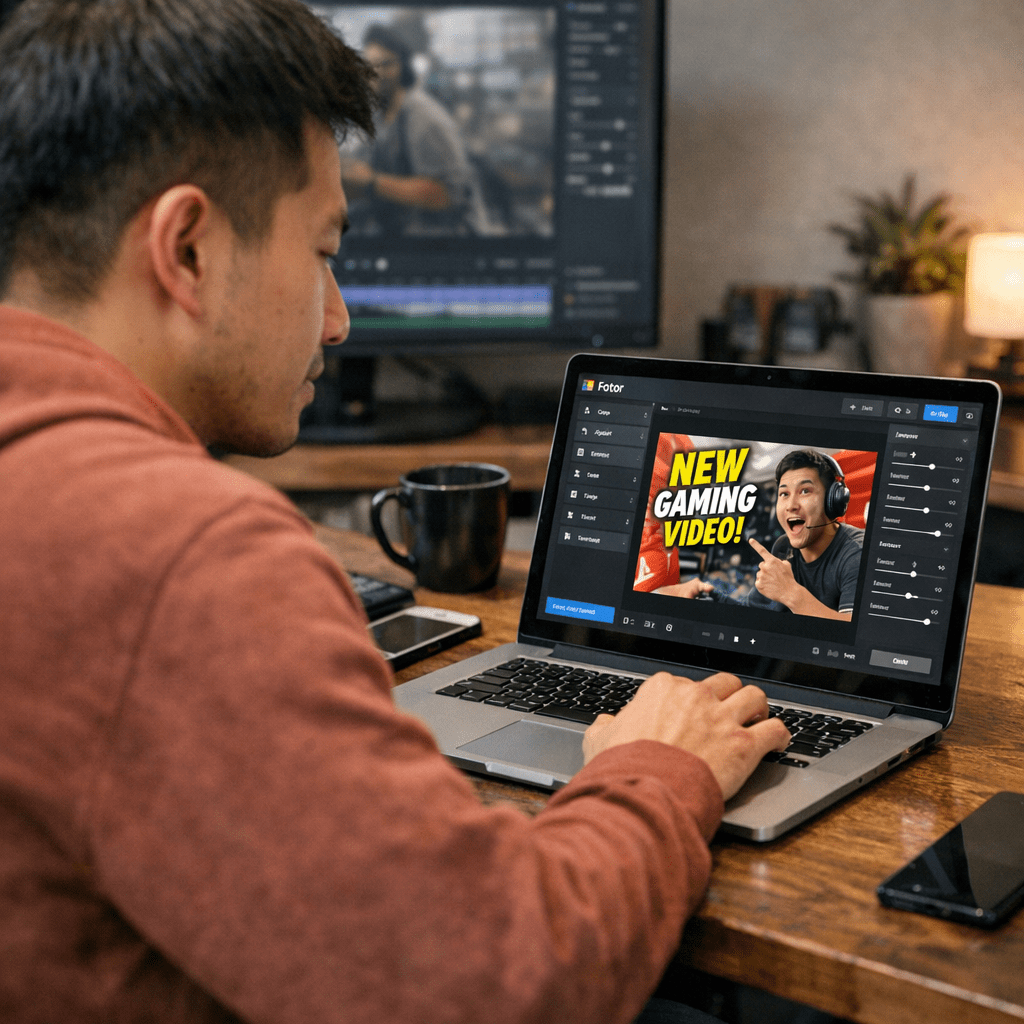
Fotor lands firmly in “easy but powerful” territory. Its AI-driven tools make tasks like cropping, color correction, and adding filters ridiculously simple—even if you’ve never used photo-editing software before.
Where Fotor shines is its ability to create professional-grade thumbnails fast without bogging you down with too many options (looking at you, Photoshop).
Features That Matter:
- Pre-sized templates built specifically for YouTube thumbnails.
- One-tap enhancement tools to sharpen dull images.
- Stickers and overlays designed to draw attention where it matters most—your video title!
But let me be real with you: Fotor isn’t as comprehensive as some other tools on this list when it comes to customization options.
Key takeaway: If speed is more important than deep customization, Fotor will save your day—and some cash too.
Related guide: 10 Herramientas Clave para Crear Contenido
3. Snappa: For Marketers Who Need Speed
Price: Free limited version; Pro starts at $10/month
Snappa positions itself as the go-to tool for marketers who want high-quality graphics yesterday. It’s got all the essential features you’d expect from services like Canva but focuses on being faster and leaner.
The catch? Its library of free templates isn’t as deep as competitors’. That said, they’re constantly adding more designs tailored specifically for social media platforms like YouTube in mind—that alone makes Snappa worth considering this year.
Standout Features:
- Direct integration with royalty-free stock photo libraries like Unsplash.
- Ready-to-use social media presets ensure pixel-perfect dimensions every time.
But here’s something I found annoying during testing: while Snappa excels at straightforward tasks like resizing or text overlays quickly—it just isn’t robust enough beyond surface-level design tweaks compared against heavyweights such Adobe Photoshop alternatives higher-tiered comparison breakdown next upcoming remaining few-tools preview analysis summary ahead following later conclusions FAQs later