



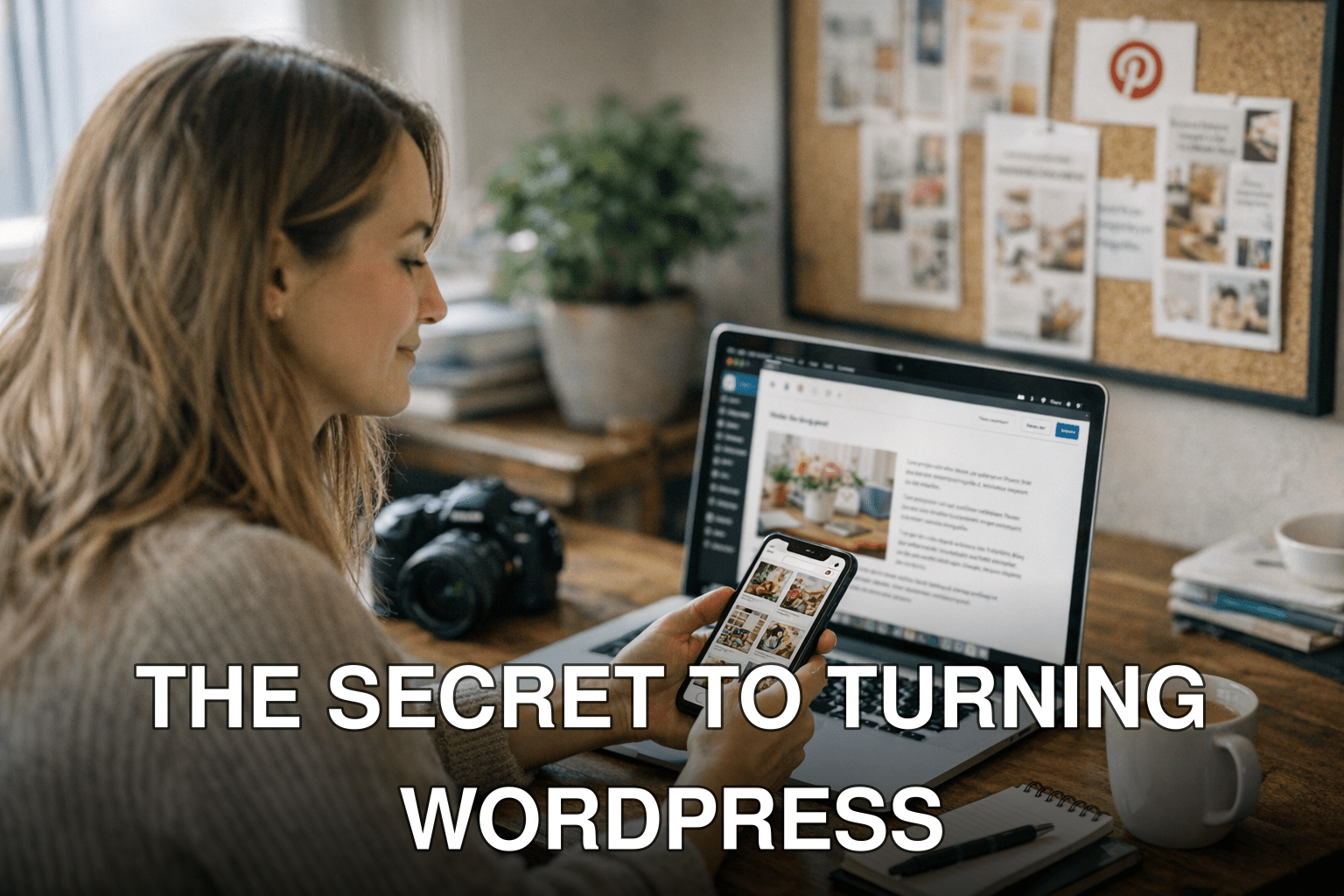
Let me guess — you’ve poured your heart into a WordPress blog post, hit publish, and… crickets. Maybe a handful of views trickle in from Google, but nothing close to what you’d hoped for. Meanwhile, Pinterest creators are racking up thousands of clicks daily with pins that look deceptively simple. What’s going on?
Here’s the deal: Pinterest isn’t just some visual board for recipes and DIY hacks anymore. It’s one of the most powerful traffic drivers on the internet — when you know how to use it. And the best part? You don’t have to start from scratch. With a few smart tweaks, your existing WordPress content can dominate Pinterest and bring in steady traffic month after month.
In this guide, we’ll break it down step by step so you can turn your posts into irresistible pins that actually drive clicks.
In this guide, you’ll discover:
- Why most bloggers fail at using Pinterest (and how to avoid their mistakes).
- The exact tools and strategies for designing scroll-stopping pins fast.
- How to automate your pinning process without looking spammy.
Ready? Let’s make those blog posts work harder.

Why Most Bloggers Miss the Pinterest Goldmine
Here’s something nobody tells you: Pinterest is not a social media platform; it’s a search engine. That changes everything about how you approach it.
Unlike Instagram or TikTok, where algorithms prioritize engagement metrics like likes or comments, Pinterest focuses on keywords and relevance — just like Google does. This means your boring old SEO skills are suddenly valuable again.
But here’s where people mess up: they think they can slap an image onto their blog post link and call it a day. Spoiler alert: that doesn’t work in 2026 (if it ever did). Users swipe right past generic pins unless they’re visually compelling and optimized for search within the platform.
Cost of Inaction
If you’re ignoring Pinterest in 2026, here’s what it could be costing you: hundreds (or even thousands) of potential visitors every month who are actively searching for content like yours. Think about this — every pin has a lifespan of months or years compared to an Instagram story that vanishes in 24 hours. That compounding effect adds up fast.
Also worth reading: 15 Little
But don’t worry; fixing this isn’t as complicated as it sounds.
Key takeaway: Treat Pinterest like a visual search engine rather than another social platform if you want sustainable traffic growth.
Step 1: Audit Your Existing Blog Posts for Pin-Worthy Content
Not every blog post deserves its own set of pins — let’s get that straight upfront. Focus on high-value posts that solve specific problems or answer popular questions within your niche.
What Makes Content “Pin-Worthy”?
Here are some quick filters I use when deciding which posts to repurpose:
- Lists & How-Tos: Posts with numbers or actionable steps (“5 Easy Recipes…”).
- Evergreen Topics: Content relevant all year round works best on Pinterest. Seasonal stuff fades quickly.
- Strong Headlines: If the title doesn’t grab attention immediately, rewrite it before creating any visuals.
- Data-backed Claims: Posts that include stats or unique insights tend to perform better because they build credibility.
For example, I recently took an underperforming SEO article about backlink tools and reshaped its messaging specifically for a DIY blogger audience on Pinterest (“10 Free Tools Every Beginner Blogger Needs”). You can learn more about scaling blog traffic with free backlink tools here.
Step 2: Design Scroll-Stopping Pins That Actually Get Clicked
You might be thinking, “I’m not a designer.” No problem — neither am I! What matters isn’t artistry; it’s clarity and curiosity.
Anatomy of a High-Converting Pin
A great pin has three core elements:
1. Compelling Headline: Use large text overlay with keywords directly related to your user’s intent.
2. Eye-Catching Visuals: Bright colors contrast well against Pinterest’s white interface; avoid small fonts.
3. Call-to-Action (CTA): Something clear like “Read More” or “Get the Full Guide.”
I recommend free tools like Canva if you’re just starting out — they’ve got templates designed specifically for Pinterest dimensions (1000x1500px). But don’t over-rely on cookie-cutter designs; tweak them until they’re unique enough to stand out.
Common Mistake: Ignoring Branding
Consistency matters! Always include subtle branding elements like your logo or site URL so people associate quality content with you. But don’t overdo it — nobody wants pins screaming “advertisement.”
Related guide: Comparativa
Key takeaway: Invest time in designing high-quality visuals tailored for mobile-first users who scroll fast but click intentionally.
Step 3: Optimize Pins with Keywords Like an SEO Pro
Remember earlier when I said Pinterest is basically Google with pictures? Well, keyword optimization is non-negotiable if you want long-term results here.
Start by doing keyword research directly within the platform:
1. Type broad topics into the search bar (e.g., “blogging tips”). See what auto-suggestions pop up.
2. Scroll through top-performing pins under those queries — study their titles & descriptions.

3. Plug promising terms into tools such as Pinterest Trends or Ubersuggest for deeper insight into popularity/trending potential during specific seasons/months/year trends overall market trajectory!
Use these findings strategically!