



Let’s face it: creating content from scratch every time is exhausting. If you’re running a business, managing a social media page, or just trying to grow your YouTube channel, you already know the hustle. That’s why repurposing content—taking what you’ve already made and tweaking it for other platforms—is such a lifesaver. But here’s the catch: doing it right takes more than just trimming clips on your phone. You need solid editing software that doesn’t wreck your budget.
I’ve tested my fair share of tools over the years—some are overhyped nightmares, others are legit gems—and here’s the real scoop on which ones work best for repurposing content in 2024 without draining your wallet.
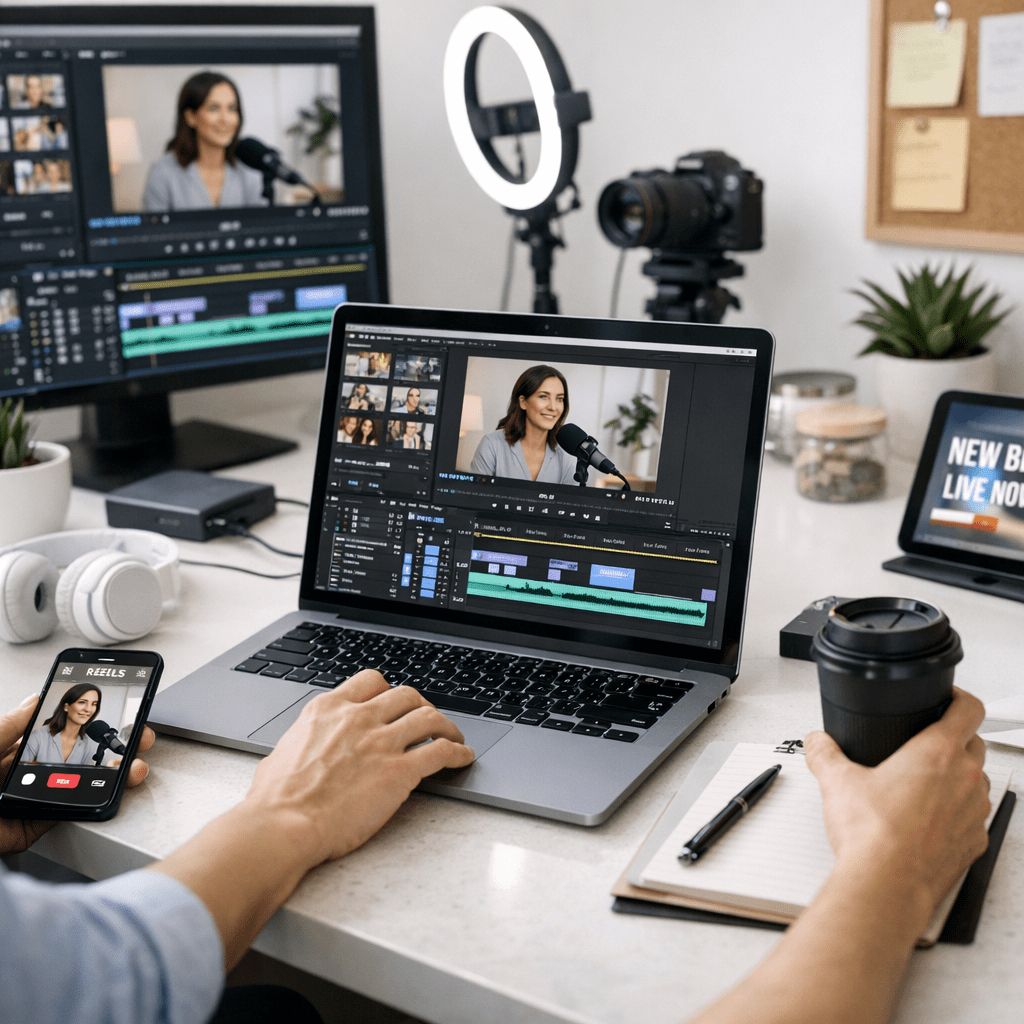
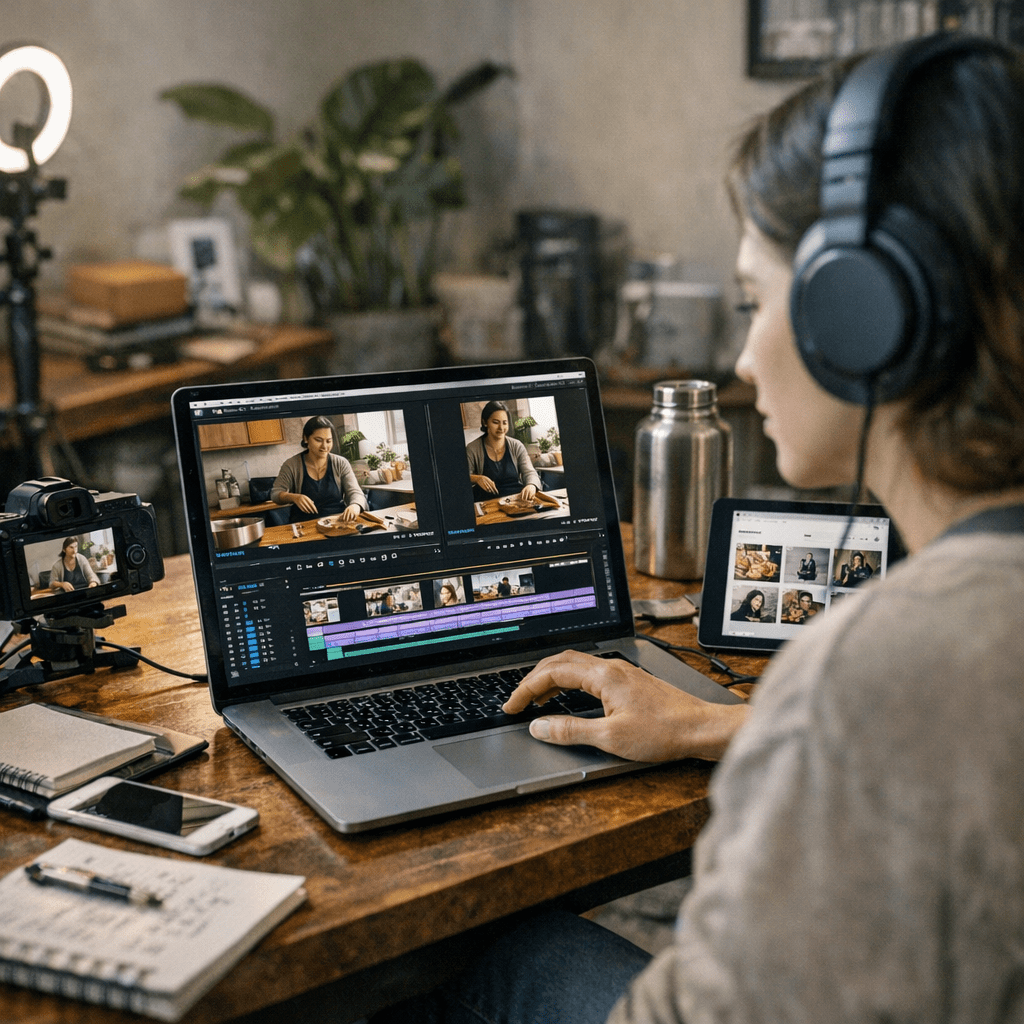
Why Affordable Doesn’t Mean Cheap
People hear “budget-friendly” and assume “barely functional.” That couldn’t be further from the truth in 2026. The competition in video editing software is wild right now, and even low-cost platforms have stepped up their game. Sure, there are tradeoffs (you’re not getting Adobe Premiere Pro-level precision for $20/month), but for most repurposing tasks—resizing videos, adding subtitles, cutting down long-form to short-form—you don’t need all those extra bells and whistles anyway.
Now let’s get into the tools that actually deliver results without guilt-tripping your bank account.
—
1. CapCut: The Social Media Specialist
If you’ve spent any time on TikTok or Instagram lately, chances are high you’ve already seen CapCut in action—even if you didn’t realize it. It’s free (yes, free!) and designed with creators who live online in mind. Resizing for vertical formats? Easy. Adding trendy transitions or text animations? Two clicks away.
Strengths
- Built-In Templates: One thing I love about CapCut is its pre-made templates tailored for TikTok-style edits or Instagram Reels vibes.
- Text-to-Speech & Subtitles: This is huge if you’re making silent videos with captions; no one wants to watch muted content without context anymore.
- Cloud Syncing: Start editing on mobile, finish later on desktop (or vice versa). Super convenient.
Limitations
CapCut is great… until you want advanced features like color grading or detailed audio mixing—that’s where it hits a wall. Also, their watermark can sneak back onto exports if you forget to disable it before rendering.
Still, for something that costs $0? It’s honestly hard to complain.
Best For: TikTokers, IG Reels creators, small businesses trying to stretch their marketing dollars.
—
2. DaVinci Resolve (Free Version): Hollywood-Level Tools Without Hollywood Prices
DaVinci Resolve has always been the tool pros swear by—but here’s what most people don’t realize: its free version isn’t some watered-down demo; it’s ridiculously powerful in its own right.
Facebook Ads vs. Organic Instagram Growth: Which Delivers More Leads?: Practical
Strengths
- Precision Editing Tools: Cutting long webinars into bite-sized LinkedIn snippets? Resolve nails this better than anything else at this price point.
- Color Grading Like No Other: Even big-budget editors envy its color correction capabilities.
- Multiplatform Support: Windows, macOS—even Linux gets love here.
Limitations
Its biggest flaw? The learning curve will make beginners cry (or rage quit). If you’re new to video editing and just want fast results for social posts… skip this one unless you’re ready to spend hours watching tutorials.
Also worth noting: exporting directly into vertical/16:9 ratios takes extra setup compared to beginner-friendly apps like CapCut or Canva Video Editor.
That said, once you’ve got the hang of it? It’s unbeatable for professional-level polish—for free.
Best For: Creators who want premium control but aren’t ready to invest financially yet.
—
3. Filmora X ($49/year): Affordable Without Feeling “Cheap”
Filmora has been hanging around as an affordable option forever—but Filmora X feels like they finally hit their stride when balancing simplicity with enough pro features to keep intermediate users happy.
It shines brightest when working on polished edits that still need fast turnaround times—think YouTube highlight reels or branded social ads.
Strengths
- Drag-and-Drop Simplicity: Everything from transitions to overlays can be dragged straight into timelines—great if speed matters more than technical finesse.
- AI-Powered Features (introduced late 2025): Auto-sync subtitles? Check! Background noise removal? Double-check!
- Affordable Lifetime License Option ($69): Upgrading once means no recurring subscription fees—a rarity these days!
Limitations
Some effects feel a little dated compared against tools pushing edgier aesthetics (cough CapCut cough). And while $49/year sounds cheap upfront… subscriptions add up over time unless you’re committing long-term with the lifetime license upgrade route instead!
Still worth considering heavily given how balanced everything feels overall execution-wise though…
—
How to Create Viral TikTok Challenges That Drive Brand Engagement: Practical Pla
Markdown Table Rundown:
| Tool | Price | Best Use Case | Key Limitation |
|——————-|—————|————————————-|———————————-|
| CapCut | Free | TikToks/Reels | Lacks advanced features |
| DaVinci Resolve | Free | Professional-grade polishing | Steep learning curve |
| Filmora X | $49/year | Polished but simple YouTube edits | Effects library feels outdated |
—
A Personal Tradeoff Moment… Canva Video vs Everything Else?
Here’s where things got interesting during my testing spree last month—I almost exclusively used Canva tools historically purely because I preferred clean visuals/design-first workflows etc but then realized overlooked MAJOR Frame-rate consistency gaps export wise etc across batch-scaled campaigns
Related Links



1 Comment